

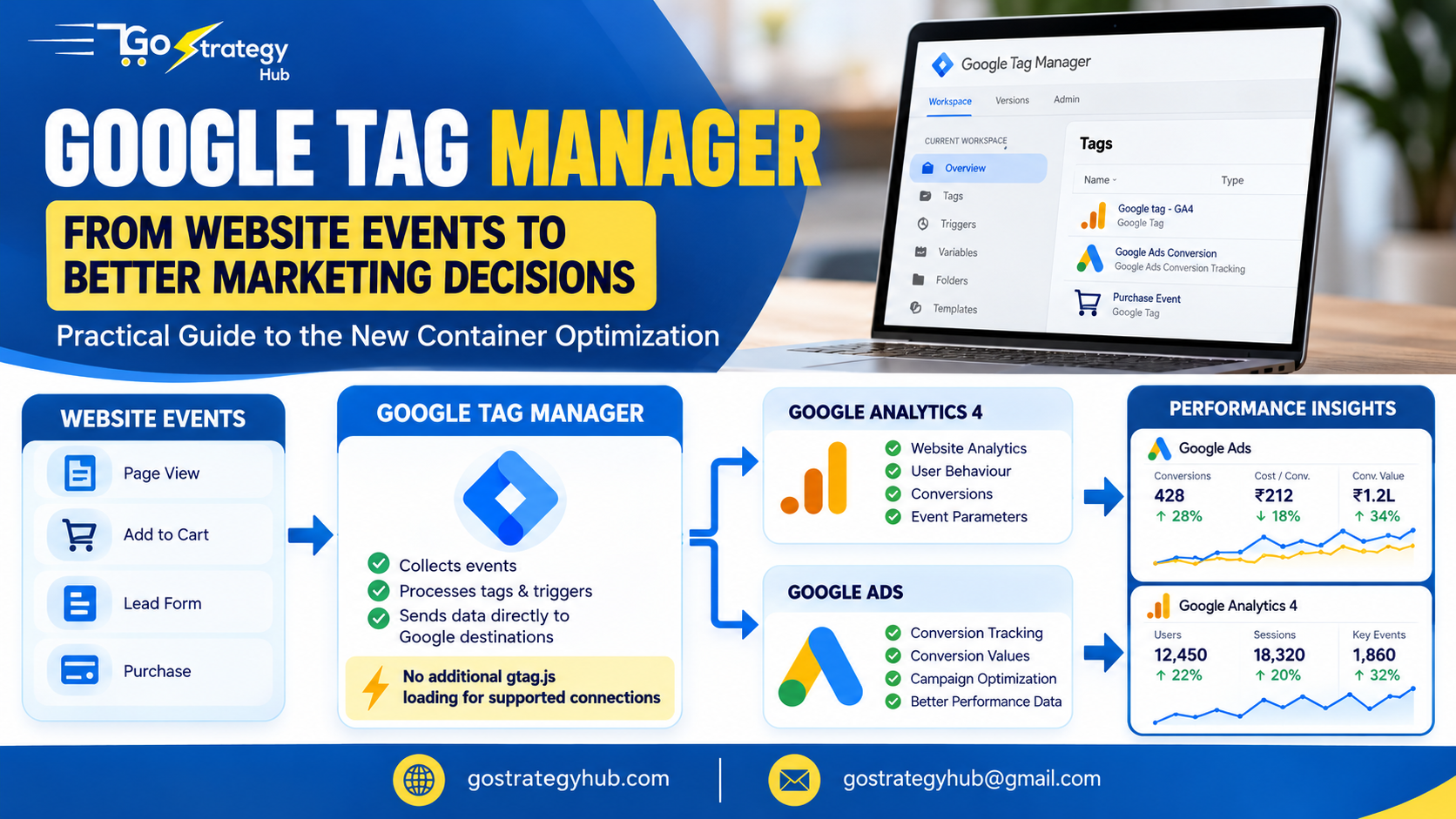
Google Tag Manager (GTM) has introduced an important change to how website data reaches Google measurement products. The October 12, 2026 update allows an optimized GTM container to send data directly to supported Google destinations, reducing the need to load additional gtag.js JavaScript for those connections. <Cite refs={[“turn644664search0″,”turn644664search17”]}/>
For marketers, this is not just a change in the interface. It affects how Google tags, destinations, settings, and permissions are organized within the tracking setup.
In this guide, we will use a practical eCommerce example to explain how to review the optimization, what happens to existing tags, how to test a purchase event, and how to investigate tracking issues after publishing.
1. What Has Changed in Google Tag Manager?
Previously, GTM could load additional gtag.js JavaScript to communicate with a Google measurement destination. This introduced another loading step and could add latency to measurement transmission.
The optimized container allows supported Google destinations to receive data directly through the container’s destination-tag setup. It also centralizes relevant settings and access management within GTM. <Cite refs={[“turn644664search0″,”turn644664search17”]}/>
Here is the practical difference:
| Earlier approach | Optimized container |
|---|---|
Additional gtag.js could be loaded for Google measurement connections | Direct data delivery to supported destinations |
| Some settings and permissions were managed separately | Relevant settings and access are managed through GTM |
| Troubleshooting could involve multiple configuration locations | Tags and destinations have a clearer relationship |
| Extra JavaScript could add loading overhead | Less additional JavaScript is needed for supported connections |
The change does not mean that GTM is being replaced. You still use GTM to configure tags, triggers, variables, and tracking behaviour.
2. How to Optimize Your Existing GTM Container
You do not need to rebuild your entire tracking setup to review this change. Google provides an optional optimization process for eligible containers. The upgrade is not applied automatically. <Cite refs={[“turn644664search5″,”turn644664search2”]}/>
Follow these steps:
- Sign in to Google Tag Manager.
- Open the account and web container for your website.
- Look for the container optimization banner or the corresponding optimization option.
- Start the optimization process if it is available.
- Review the proposed changes before accepting them into your workspace.
- Check the new Settings tab and review the Google destinations connected to your container.
- Preview and validate the changes before publishing.
The exact interface may vary according to your container and rollout status.
Important: Keep a record of your current setup before making changes. If you manage a client website, confirm that you have the appropriate access and approval before publishing.
3. Understand the New Settings and Destination Structure
Suppose you run an online store and want to measure website activity in GA4 and purchases in Google Ads.
Your container may include these components:
- A Google tag or destination configuration for GA4.
- A Google Ads conversion tracking tag.
- A purchase event trigger.
- Variables containing the transaction ID, currency, and purchase value.
After optimization, relevant Google destination settings are managed within the updated GTM experience. The existing event tags are not necessarily replaced by the upgrade; Google states that event tags remain unchanged while Google tag settings move into the Settings tab. <Cite refs={[“turn644664search5″,”turn644664search17”]}/>
The practical job is to check that your destinations, events, and parameters are still configured correctly.
For example, a purchase event might contain the following information:
Event name: purchase
Transaction ID: ORDER_12345
Currency: INR
Value: 2499
These are illustrative values. Your website or eCommerce platform should supply the real transaction ID, currency, and order value dynamically.
The transaction ID helps you investigate whether the same order is being reported more than once. The currency and value help you validate the revenue being sent to your measurement tools.
4. Test a Purchase Event Before Publishing
A successful optimization is not simply a container that publishes without an error. The important test is whether the website continues to send the correct measurement data.
Start by opening your GTM workspace and selecting Preview. Connect Tag Assistant to your website and complete a test purchase journey.
Use this sequence:
Open Product Page
       |
       v
Add Product to Cart
       |
       v
Begin Checkout
       |
       v
Complete Test Purchase
       |
       v
Inspect Events in Tag Assistant
       |
       v
Verify Expected Tags and Parameters
At each step, inspect the event timeline and confirm that the expected event appears.
For the purchase event, check:
- The event name is correct.
- The transaction ID is present.
- The currency is correct.
- The purchase value matches the test order.
- The relevant Google tags execute as intended.
- The event is not being sent unintentionally by another overlapping implementation.
A tag appearing under the fired tags section means that the tag executed. It does not, by itself, prove that the destination received and processed the event.
Verify the data in GA4
Open your GA4 property and use DebugView or the relevant reporting and diagnostic tools to inspect the test event.
Confirm that the purchase event and its expected parameters are being received. Allow for processing time where necessary.
Verify the data in Google Ads
Open the conversion summary in Google Ads and inspect the relevant conversion action and its diagnostics.
Google Ads reporting is not always immediate, so do not treat a short delay as proof that tracking is broken. Check the configuration and available diagnostics before making another change.
5. Troubleshoot Common Tracking Problems
Problem 1: The expected event does not appear
First, check whether the event is generated by your website. For example, a purchase event might depend on the order confirmation page or a data-layer event pushed by your eCommerce platform.
Next, inspect the GTM Preview timeline and confirm that the trigger conditions match the event.
Do not change the destination configuration until you understand whether the problem originates from the website event, the trigger, or the tag.
Problem 2: The tag fires, but the conversion is missing
A fired tag does not guarantee that the destination has processed the conversion.
Check the event parameters, destination configuration, consent behaviour, browser network requests, and available destination diagnostics.
If the request is sent but the conversion still does not appear in reporting, investigate the destination’s processing and attribution requirements.
Problem 3: Purchase values are incorrect
Compare the value in the GTM event with the actual test order.
For example, if the order total is ₹2,499 but the event sends ₹249, the problem may be in the website’s data layer or the GTM variable mapping.
Correct the source or mapping, then test again. The container optimization does not automatically repair incorrect purchase values.
Problem 4: One purchase appears more than once
Review every place that might send the purchase event. A website platform, a manually installed Google tag, and a GTM configuration could overlap.
Also check whether Google Ads is counting separate conversion actions for the same business outcome.
For GA4 purchase events, use a stable transaction ID and inspect the implementation for duplicate event delivery. For Google Ads, review the conversion actions and their counting settings. Do not assume that two tags firing always means two conversions will be counted, but do investigate any unexplained duplication.
6. Measure the Impact of the Optimization
If you upgrade a container, compare the setup before and after the change.
Record the following:
| Area | What to verify |
|---|---|
| Website performance | Compare relevant page-load and performance measurements |
| GTM events | Confirm expected events and triggers still work |
| GA4 | Verify event receipt and parameter values |
| Google Ads | Review conversion diagnostics and reporting |
| eCommerce orders | Compare transaction IDs and actual orders |
| Lead generation | Compare recorded leads with CRM records |
Google describes the optimization as a way to improve website performance and data collection, but the impact on an individual website depends on its implementation. <Cite refs={[“turn644664search0″,”turn644664search3”]}/>
Do not assume that removing an additional JavaScript loading step will automatically improve your campaign’s cost per lead, return on ad spend, or conversion rate. Those results also depend on the quality of the measurement data, the website, the audience, the offer, and the campaign itself.
7. Final Implementation Checklist
Before publishing your optimized container, confirm the following:
- The correct GTM web container is selected.
- The proposed optimization changes have been reviewed.
- The relevant Google destinations are configured correctly.
- Existing event tags and triggers have been checked.
- Purchase or lead events contain the expected parameters.
- Consent behaviour has been tested where applicable.
- No unintended duplicate tracking has been introduced.
- The expected data reaches the appropriate destinations.
- The changes have been documented and approved.
Conclusion
The Google Tag Manager container optimization provides a more streamlined way to manage Google measurement destinations. It reduces the need for additional gtag.js loading for supported connections, brings relevant settings into the container, and makes the relationship between tags and destinations easier to understand. <Cite refs={[“turn644664search0″,”turn644664search17”]}/>
For marketers, the right implementation process is straightforward: review the proposed changes, verify destination settings, test important conversion events, inspect their parameters, and compare the results with actual business records.
The goal is not simply to publish an optimized GTM container. It is to maintain accurate, consistent measurement so that Google Ads and GA4 reporting can support informed business decisions.
At GoStrategyHub, we treat reliable conversion tracking as a core part of performance marketing because campaign decisions are only as useful as the data behind them.
Visit GoStrategyHub for more practical guides on Google Ads, conversion tracking, and performance marketing.
