

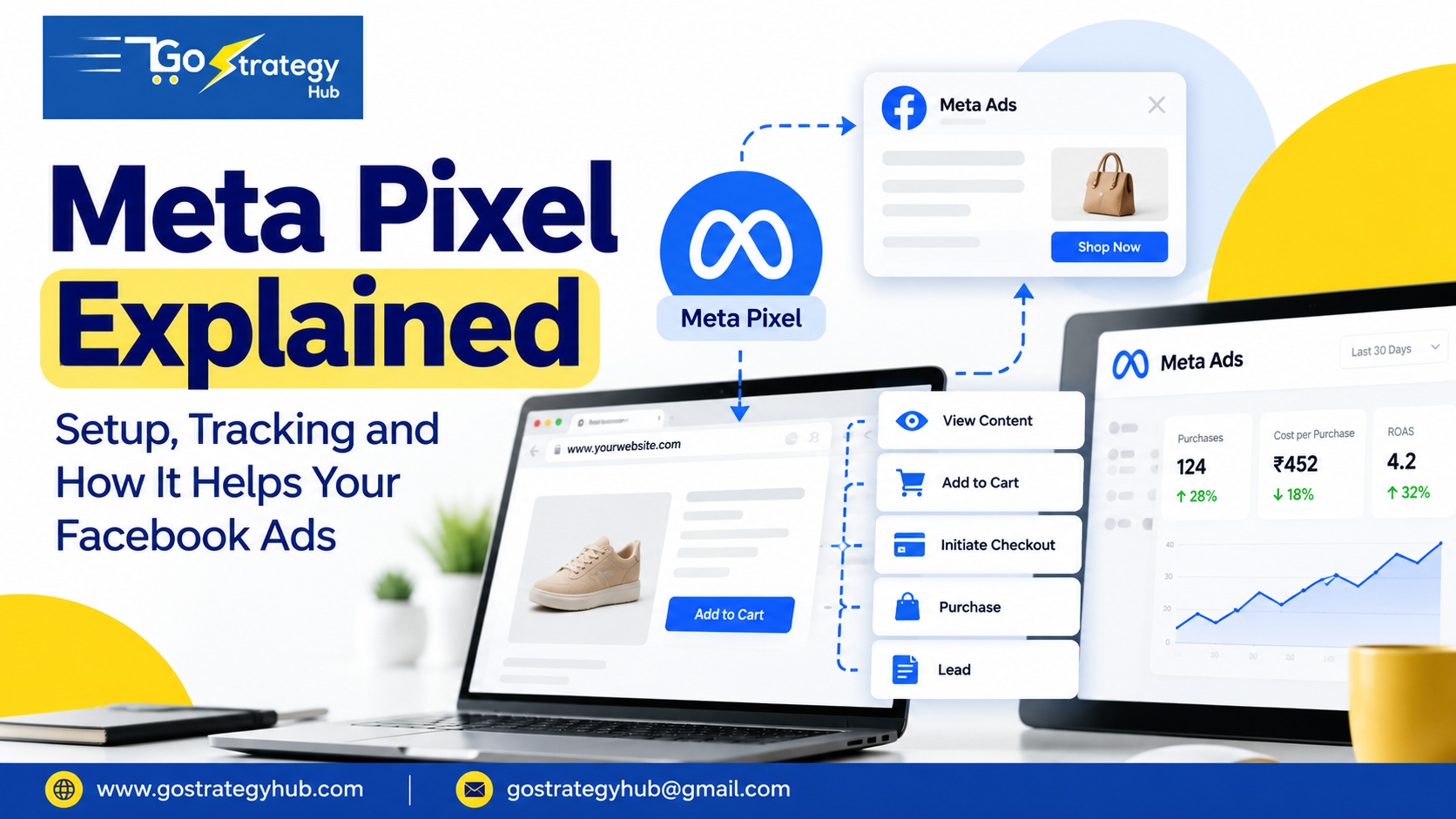
If you run Facebook or Instagram ads, you probably want to know how many people visit your website, fill out a form, or buy your products after seeing your ads.
But how can you track these actions?
This is where the Meta Pixel helps.
Meta Pixel is a free tracking tool that helps businesses understand what people do on their websites after interacting with their ads. It can help you measure results, improve your ads, and reach people who have already visited your website.
In this blog, we will explain what Meta Pixel is, why it is useful, whether you can run ads without it, and how to set it up step by step.
What Is Meta Pixel?
Meta Pixel is a small piece of code that you add to your website to track certain actions taken by visitors.
For example, suppose you own an online clothing store. You run Instagram ads to promote your new collection.
Some people click your ads and visit your website. Others view products, add items to their carts, or complete a purchase.
Meta Pixel can help track these actions when it is set up correctly and the required tracking permissions are in place.
This information helps you understand what happens after people click your ads.
In simple words, Meta Pixel helps you understand what people do on your website after seeing or clicking your Facebook and Instagram ads.
What Is Meta Pixel Used For?
Meta Pixel can help you in several ways.
1. Track Website Actions
You can track important actions people take on your website, such as:
- Viewing a product or service
- Adding a product to the cart
- Starting the checkout process
- Making a purchase
- Submitting a lead form
These actions help you understand how visitors interact with your website.
For example, if many people view your products but very few make a purchase, you may need to check your prices, product details, delivery charges, or checkout process.
2. Measure Facebook and Instagram Ad Results
Getting clicks on your ads is not enough. You also need to know whether those clicks lead to useful results.
Meta Pixel can help you measure actions such as purchases and leads, depending on your tracking setup.
For example, imagine you spend ₹10,000 on ads and receive 20 purchases worth ₹30,000 in total.
When purchase tracking and order values are set up correctly, you can use this information to understand the sales linked to your campaigns and calculate your return on ad spend.
However, tracking data may not capture every action, so it is important to compare it with your actual sales or lead records.
3. Reach People Who Have Visited Your Website
Not everyone buys a product or contacts your business on their first visit.
Some people may visit your website, check your services, and leave without taking action.
With the right setup, you can create an audience of eligible website visitors and use it for remarketing campaigns.
For example, if someone visits your online store but does not buy anything, you may show that person another ad featuring your products.
This can help bring interested visitors back to your website.
4. Help Improve Your Ad Campaigns
Meta uses the data available from your campaigns to help deliver ads to people who are more likely to take your chosen action.
When conversion tracking is working correctly, it can provide useful signals for campaign optimisation.
For example, if your goal is to generate leads, tracking completed lead forms can help Meta understand which users are taking that action.
Remember that installing the Pixel alone does not guarantee better results. Your offer, ad creative, audience, website, and campaign settings also matter.
Can You Run Facebook Ads Without Meta Pixel?
Yes, you can run Facebook and Instagram ads without Meta Pixel.
Meta Pixel is not compulsory for every ad campaign. Whether you need it depends on your campaign goal and where you want people to take action.
Here are some common examples.
| Campaign goal | Can you run ads without Pixel? |
|---|---|
| Increase brand awareness | Yes |
| Get more video views | Yes |
| Increase engagement | Yes |
| Get messages on WhatsApp or Instagram | Yes |
| Send people to your website | Yes |
| Generate leads using Meta’s instant forms | Yes |
| Track website purchases | You can run ads, but website purchase tracking will be limited without another suitable tracking setup |
For example, if you run ads to get WhatsApp enquiries, you can start without installing Meta Pixel.
But if you own a website and want to track purchases, leads, or other website actions, setting up the Pixel is usually a good idea.
Without suitable website tracking, it becomes harder to understand which ads lead to results on your website.
My suggestion: If your business depends on website leads or online sales, set up Meta Pixel before spending a large amount on ads.
How to Set Up Meta Pixel on Your Website
Setting up Meta Pixel is easier when you follow the steps in the right order.
Step 1: Open Meta Events Manager
Log in to your Meta Business account and open Events Manager.
Events Manager is the place where you can create and manage data sources that send activity information to Meta.
Choose the option to connect a data source and select the web option if it is available in your account.
Follow the instructions to create a new Pixel or web data source. The exact options may look different depending on your account.
Step 2: Connect Your Website
After creating your Pixel, Meta will guide you through the setup process.
You may see options to install the Pixel code manually or connect it through a supported website platform or partner integration.
Choose the method that matches your website.
For example, if your website runs on WordPress, you may be able to use a supported plugin or integration. Other platforms may provide their own connection steps.
Step 3: Install the Pixel Code
If you choose manual installation, Meta will provide a code for your website.
You need to add this code to the appropriate part of your website so that it can track eligible website activity.
If you are not comfortable editing website code, ask your website developer to help.
Important: Avoid installing the same Pixel code more than once through different methods. Duplicate installation can cause some events to be counted twice.
Step 4: Set Up the Events You Want to Track
Installing the Pixel is only one part of the process. You also need to make sure the right actions are tracked.
Common events include:
- PageView: Someone visits a page.
- ViewContent: Someone views a product or another important page.
- Lead: Someone submits a lead form or completes another defined lead action.
- AddToCart: Someone adds a product to their cart.
- InitiateCheckout: Someone starts the checkout process.
- Purchase: Someone completes a purchase.
Choose events that match your business goals. For example, an online store may focus on AddToCart, InitiateCheckout, and Purchase, while a service business may focus on Lead.
The event should fire when the relevant action actually happens, not simply whenever someone visits the website.
Step 5: Test Your Setup
After installation, open the Test Events section in Events Manager and follow the instructions to test your website.
Visit your website and perform the actions you want to track.
For example, view a product, add it to your cart, or submit a test lead form.
Check whether the correct events appear in Events Manager.
You can also use the Meta Pixel Helper browser extension to help identify Pixel activity and some common setup problems.
Do not assume that the setup is correct just because the Pixel code has been added. Test the actions and check that they are recorded properly.
Step 6: Check Your Data Before Running Ads
Before launching your campaign, make sure your Pixel is active and the events match your website actions.
If you plan to optimise campaigns for leads or purchases, select the correct conversion event when configuring your campaign, where that option is available.
Also, follow the privacy and consent rules that apply to your website and visitors.
Once your tracking is working, you can use the information to understand your ad results and find areas that need improvement.
Is Meta Pixel Enough for Tracking?
Meta Pixel is useful, but it may not capture every website action.
Some browser settings, privacy tools, consent choices, and technical issues can affect the data it receives.
For this reason, some businesses also use the Conversions API (CAPI).
The Conversions API can send selected event data from a business’s server or another supported source to Meta. It can work alongside the Pixel to help improve event measurement.
However, the two tools need to be set up correctly. If the same action is sent by both tools, event deduplication may be needed to avoid counting it twice.
If you are just starting, first make sure your Pixel and key events work correctly. You can review whether a Conversions API setup is useful for your business later.
Common Meta Pixel Setup Mistakes to Avoid
Here are a few mistakes to watch out for:
- Installing the Pixel but not testing it.
- Tracking page visits instead of actual leads or purchases.
- Setting up the wrong event for your campaign goal.
- Counting the same event twice.
- Sending incorrect purchase values or currency.
- Forgetting to check your website’s consent and privacy requirements.
- Assuming every sale or lead will appear in Meta Ads Manager.
Accurate tracking helps you make better decisions. Incorrect tracking can make a campaign look better or worse than it really is.
Frequently Asked Questions
1. Is Meta Pixel free?
Yes. Meta Pixel itself is free to use. You may still have costs for developer support, website tools, or other services used during installation.
2. Do I need Meta Pixel to run Facebook ads?
No. You can run Facebook and Instagram ads without Meta Pixel. However, it is useful if you want to measure actions that happen on your website.
3. Can I install Meta Pixel without a developer?
Yes, in many cases. Supported website platforms and integrations may make installation easier. Manual code installation may require help from a developer.
4. How do I know if my Meta Pixel is working?
Use the Test Events section in Events Manager and follow the steps to check your website activity. Meta Pixel Helper can also help you inspect Pixel activity in your browser.
5. Does Meta Pixel track every website visitor?
No. Tracking can be affected by browser settings, privacy tools, consent choices, and technical limitations. Pixel data may not represent every visitor or action.
6. What is the difference between Meta Pixel and Conversions API?
Meta Pixel sends website event data from the browser. Conversions API sends event data through a server or another supported connection. They can be used together when correctly configured.
Final Thoughts
Meta Pixel helps you understand what happens after people visit your website through your Facebook and Instagram ads.
It can help you measure leads and sales, build audiences for remarketing, and improve your understanding of campaign performance.
You can run ads without it, especially when your goal is engagement, video views, messages, or leads collected through Meta’s instant forms.
But if your goal is to generate website leads or online sales, setting up and testing Meta Pixel is an important step towards better tracking.
If you want your advertising to bring real business results, focus on more than clicks. Track the actions that matter to your business and use the data to make better decisions.
Need help setting up Meta Pixel or improving your Facebook and Google Ads performance? Contact GoStrategyHub at gostrategyhub.com.
